Link to the video tutorial.
How Two-Factor Authentication Works in ioGates
-
Receiving the Share Email:
When a receiver gets an email to view shared files, clicking the “view files” button will prompt a security measure beyond the standard access. -
Entering the 2FA Code:
Upon attempting to access the files, the receiver is asked to enter a four-digit code sent via SMS to their cell phone. This requirement ensures that access to the files requires both the email and the four-digit SMS code, adding a layer of security that ties access to the receiver's physical device.
Setting Up Two-Factor Authentication for Shared Folders
-
Enable 2FA on a Folder:
Select the folder you wish to protect with 2FA from your ioGates library. Look for and click on the SMS icon at the library's bottom to initiate the setup.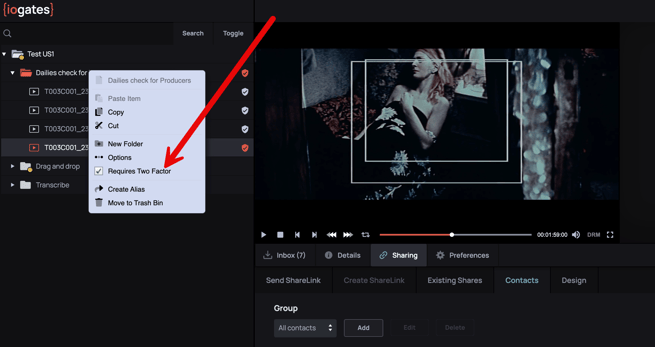
-
Sharing with 2FA:
In the Sharing menu, you can assign access to individuals by dragging their contact over. If a contact does not have a registered cell phone number, you'll need to add them to the address book with the correct country code, prefaced by "00" or "+".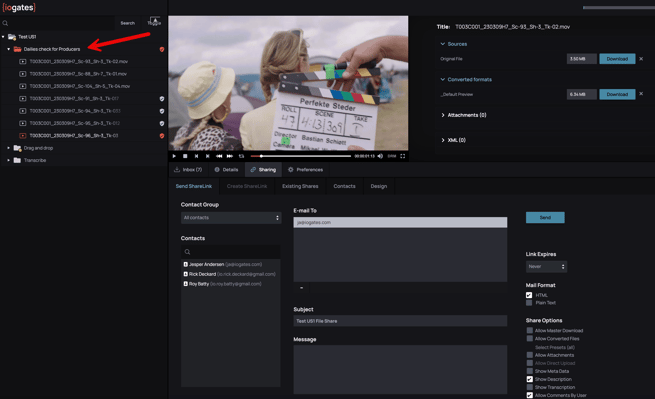
-
Receiving and Using the SMS Code:
The recipients will receive an email with a link to view the files. Upon clicking, they'll be taken to the Two-Factor Authentication.
- If it is the first time opening a SMS protected share the recipient must consent to the system sending text messages to the recipient's phone. This is done by the receiver verifying her/his phone number.
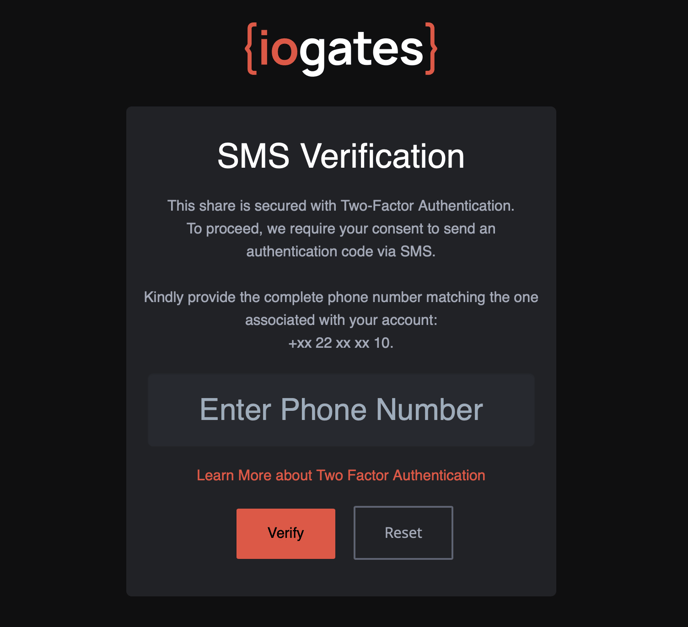
- Upon clicking, they'll be prompted to enter the SMS code. If there's an issue receiving the SMS, a “Call me” option appears after 15 seconds, offering an automated call to deliver the code.
There's an option to remember the browser for 30 days which allows the recipient to authenticate the specific browser for 30 days at a time.
It is also possible to switch to Authenticator App Two-Factor authentication (Google Authenticator, Apple Passwords, 1Password, etc.)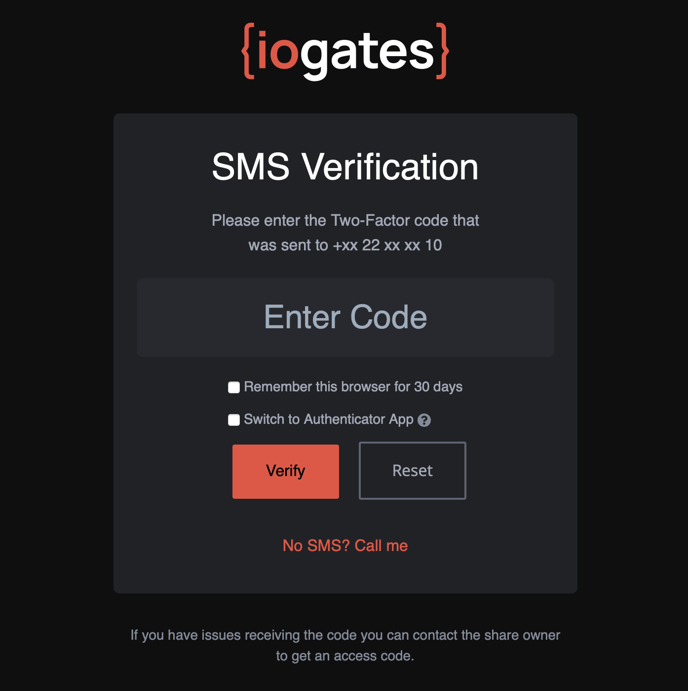
- If it is the first time opening a SMS protected share the recipient must consent to the system sending text messages to the recipient's phone. This is done by the receiver verifying her/his phone number.
Extra Security Measures
Code Validity: The SMS code refreshes every minute, ensuring temporary and secure access. Users have three attempts to enter the code correctly before it resets, preventing unauthorized access attempts.